
Two-factor authentication
What this page covers
Section titled “What this page covers”A one-time code on top of the password. Users can turn it on themselves, and an administrator can use policy to require it of everyone or of administrators. Someone required to enroll goes straight into enrollment once the password passes, and enters the system when it is done, without signing in again.
What you need
Section titled “What you need”An authenticator application that supports TOTP.
How to set it up
Section titled “How to set it up”A user turns it on
Section titled “A user turns it on”On the two-step verification card of the Profile page:
- Press “Generate secret”.
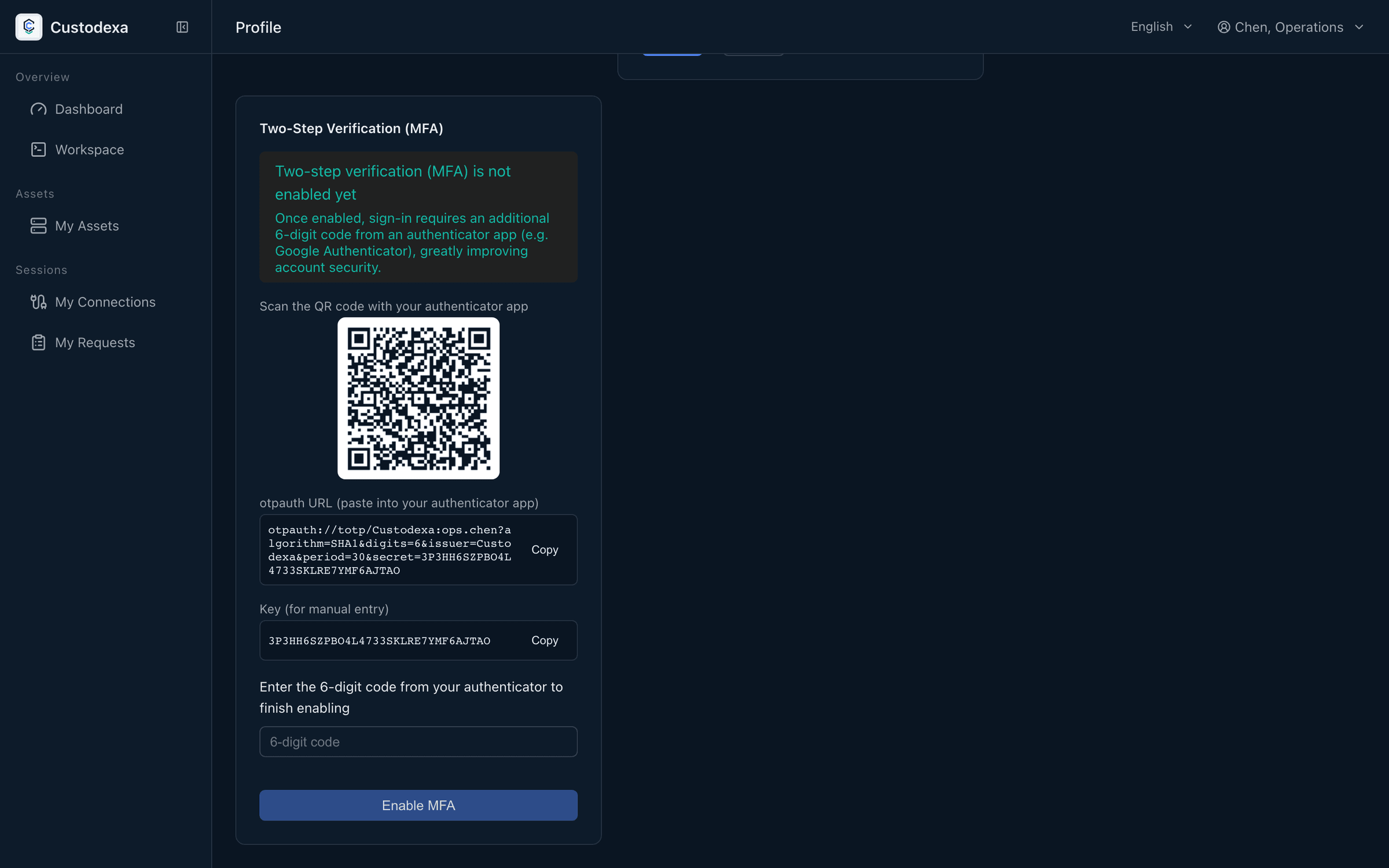
- Scan the QR code with the authenticator. The QR code is generated locally in the browser. When scanning is not possible, the page also offers the secret string and the otpauth address to enter by hand.
- Enter the 6-digit code the authenticator shows and press “Enable MFA”.
Turning it off yourself requires the current password.
Enrollment required by policy
Section titled “Enrollment required by policy”On the Security Policies page, change “two-factor authentication scope” from off to administrators only or all users; it ships off. Someone under the requirement who has not enrolled sees the enrollment step on the login page once the password passes: scan, enter the code, finish enrollment, and sign in. The temporary credential used for enrollment is valid for 15 minutes and works only for enrollment. It reaches no other API and opens no connection.
Verification at login
Section titled “Verification at login”For an account that has it on, the code step follows the password. The temporary credential in this stage is valid for 5 minutes and works only for verification. A code that has been used cannot be used again, and a replay is blocked. A wrong code and a wrong password share one lockout counter.
Administrator rescue
Section titled “Administrator rescue”When a user has changed phones and has no recovery code, an administrator disables two-factor authentication for that account on the Users page, and the user can enroll again. This action leaves a record carrying the administrator’s identity.
What auditors can see
Section titled “What auditors can see”- Enrollment, self-service removal, and administrator rescue each leave a record, and the rescue one carries the administrator who performed it.
- A failed code verification leaves a record.
- A refused code replay leaves a record.
- An already enrolled account refused when it tries to re-enroll with an enrollment credential leaves a record as well.