
Rotation evidence report
What this page covers
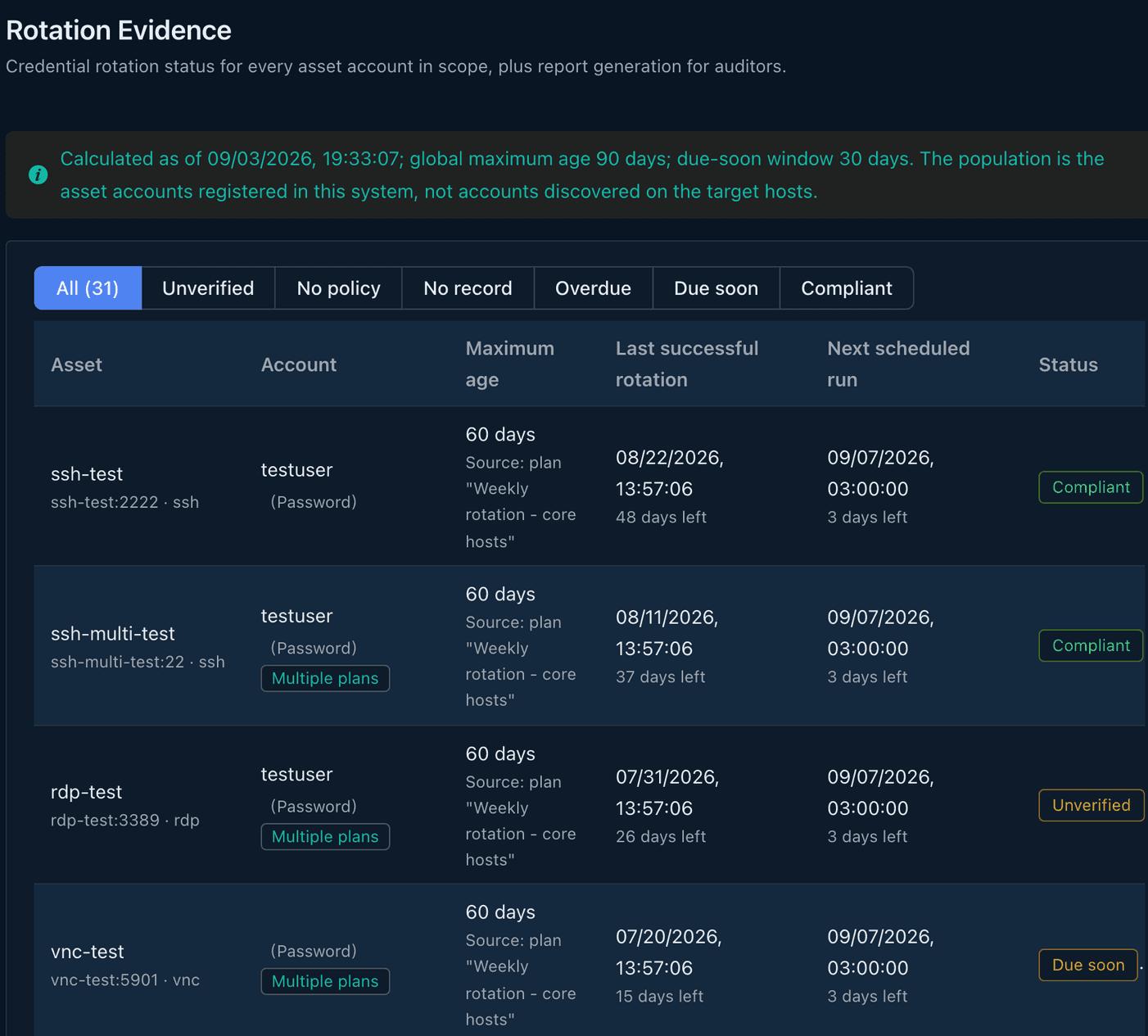
Section titled “What this page covers”When an auditor asks how often your privileged account passwords change and whether any are overdue right now, this page is the answer. The report lists, per account, the number of days that applies and where it comes from, the last successful rotation, two kinds of days remaining, and a status bucket. The table on screen, the CSV files, and the PDF all come from one dataset.
What you need
Section titled “What you need”- Audit view permission, held by the administrator and auditor roles alike. Maintaining schedules is for administrators.
- The population is the asset accounts registered in the system that still exist.
Where the applicable number of days comes from
Section titled “Where the applicable number of days comes from”The global policy key “maximum credential age for asset accounts” is the baseline, shipped as 0, which means unset. An individual rotation plan can override it. Where several plans cover one account, the report takes the strictest number of days and the most recent schedule. Every row of the report says whether that number came from the global policy or from a named plan.
Status buckets
Section titled “Status buckets”Each account falls into one of six mutually exclusive states, decided in this order:
| Status | Meaning |
|---|---|
| Unverified | A candidate credential is awaiting verification, and the remote state is still to be confirmed |
| No policy | No applicable number of days, so it is left out of the compliance rate |
| No record | A policy applies, but there is no successful rotation on record |
| Overdue | More than the applicable number of days since the last successful rotation |
| Due soon | Inside the 30-day warning window |
| Compliant | Everything else |
The denominator of the compliance rate leaves out the no-policy and unverified accounts, and when it comes to zero the rate is shown as not applicable. The page offers both calculations, with and without the no-record accounts, so whoever reads the report knows which one they have.
How to produce one
Section titled “How to produce one”Go to the Rotation Evidence page and press Produce report:
- Scope: the whole system, a node (subtree included), or a rotation plan.
- Report period: start and end times, which decide the rotation records the appendix covers.
- Report language: Traditional Chinese, English, or Japanese.
After you submit, collect it from the Rotation reports tab of the downloads page.
Scheduled reports
Section titled “Scheduled reports”Administrators set schedules on the same page: a name, a frequency picker (daily / weekly / monthly / quarterly / yearly / custom, with a preview of the next three run times), a retention period for the packages (1 to 3650 days), a scope, and a language. The custom field is where a five-field timetable is filled in. The system advances the start of the next report period, which is read-only. “Produce now” produces one period early and advances that start.
What the package holds
Section titled “What the package holds”A single ZIP holding:
report.pdf: cover and summary, the exception list (overdue, due soon, and unverified, grouped), a separate section for no policy, an appendix of every account, and an appendix of the rotation records in the period. The report identifier is in the footer.accounts.csv: every account, with columns that are a superset of the PDF appendix.records.csv: the rotation records in the period.manifest.jsonand its signature file.
CSV files are UTF-8 with a byte order mark, the first line is a comment naming the cutoff time, and the column names follow the report language. A cell a spreadsheet would read as a formula gets a leading apostrophe.
What auditors can see
Section titled “What auditors can see”- Each row of the report: the account, asset, protocol, credential type, whether it is privileged, whether the credential is shared, the plans covering it, the applicable number of days and its source, the last success, the state of the most recent record, two kinds of days remaining, the candidate state, and the status bucket.
- The manifest states: the kind, scope, record period, cutoff time, the two timestamps for the request and the packaging, the requester, a content hash per file, the counts per section with truncation marks, and the signature state.
- The rotation reports tab of the downloads page is visible and downloadable to every account with audit view permission, and each download records who, which package, and that file’s content hash.
- Creating, changing, and deleting a schedule each leave a record; for a job a schedule triggers, the requester is recorded as the system.